Account settings and linked accounts
Manage Discord, Epic, username, email, password, hide bets, and sound in Settings.
Updated August 3, 2026

Settings is the hub for your FortBux profile, linked accounts, and privacy preferences.
Open Settings
After you sign in, open Settings from your account menu on fortbux.com.
What you can change
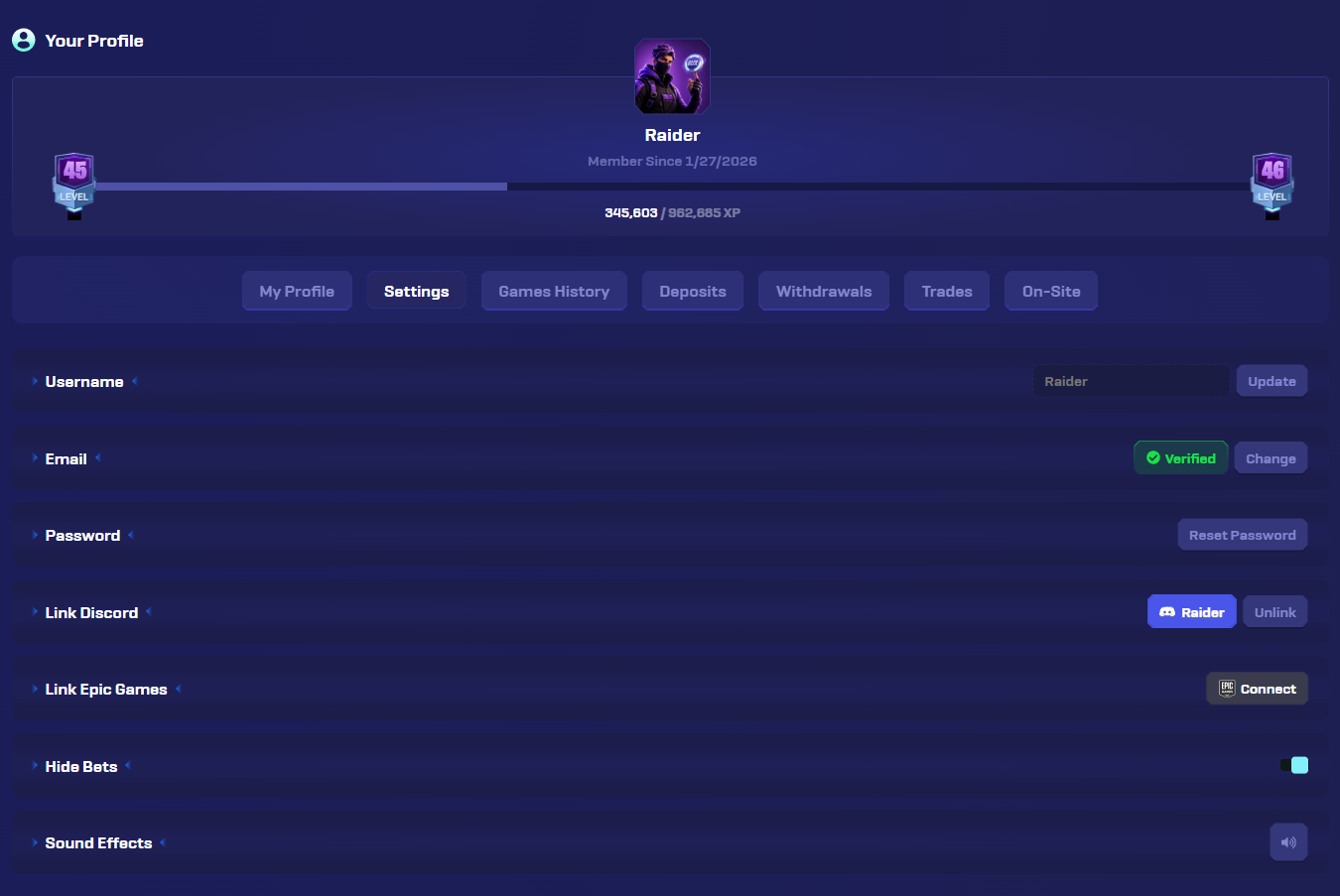
Link Discord
Connect Discord to your FortBux account
Connect Epic Games
Link Epic for skin and Fortnite features
Update username
Change the name shown on FortBux
Change email
Update the email on your account
Reset password
Set a new password for email login
Hide bets
Appear anonymous in the bet feed
Disable sound
Turn off sound effects on site
Linked accounts
Discord
Link Discord when you want Discord-tied features or giveaways that require a connected account. Unlink only from Settings if you need to switch Discord users.
Epic Games / Fortnite
Link Epic for Fortnite-related features and skin withdrawals. Skin cashouts also need FortBux bots added for 48 hours. Full steps: Withdraw skins from the marketplace.
Privacy: hide bets
Turn on Hide bets if you do not want your bets shown with your username in the public bet feed. You still play normally. Only the public feed display changes.
Sound
Use Disable sound to mute site sound effects. This does not affect chat or Discord.
Email and password
Keep an email you can access. Use it for recovery and support. Reset your password from Settings if email login is enabled.
If you cannot sign in at all, start with Fix common login issues.
Account status problems
If your account is limited, muted, or banned, see Account restricted or banned.
Was this helpful?